Create Linodes on Akamai from the same form you deploy from.
Connect an Akamai (Linode) account with a personal access token, pick a region and a plan, and SrvYard creates the Linode, logs in with a key it generated and installs what the server type needs. Akamai bills you directly.
# Settings, Server providers, Akamai (Linode)
name        Akamai (production)
token       personal access token
scopes      Linodes read/write, Account read only
expiry      set one far enough ahead
verify      checked with GET /profile
stored encrypted, never shown again01What you need
| Item | Detail |
|---|---|
| Account | An Akamai Cloud (Linode) account and permission to create a personal access token (Cloud Manager, your profile, API Tokens). |
| Token | Read/Write access to Linodes and Read Only access to Account. Choose an expiry far enough ahead that servers keep working; an expired token turns the connection to Needs reconnecting. |
| Operating system | Ubuntu 24.04 LTS or 26.04 LTS (the public linode/ubuntu images). |
| Server types | App, web, load balancer, database, cache, worker and Meilisearch servers. The type decides what is installed and cannot be changed afterwards. |
| Plan | Hobby 1, Pro 10, Business unlimited servers. Archived servers do not count. |
02What SrvYard asks of Akamai
and nothing else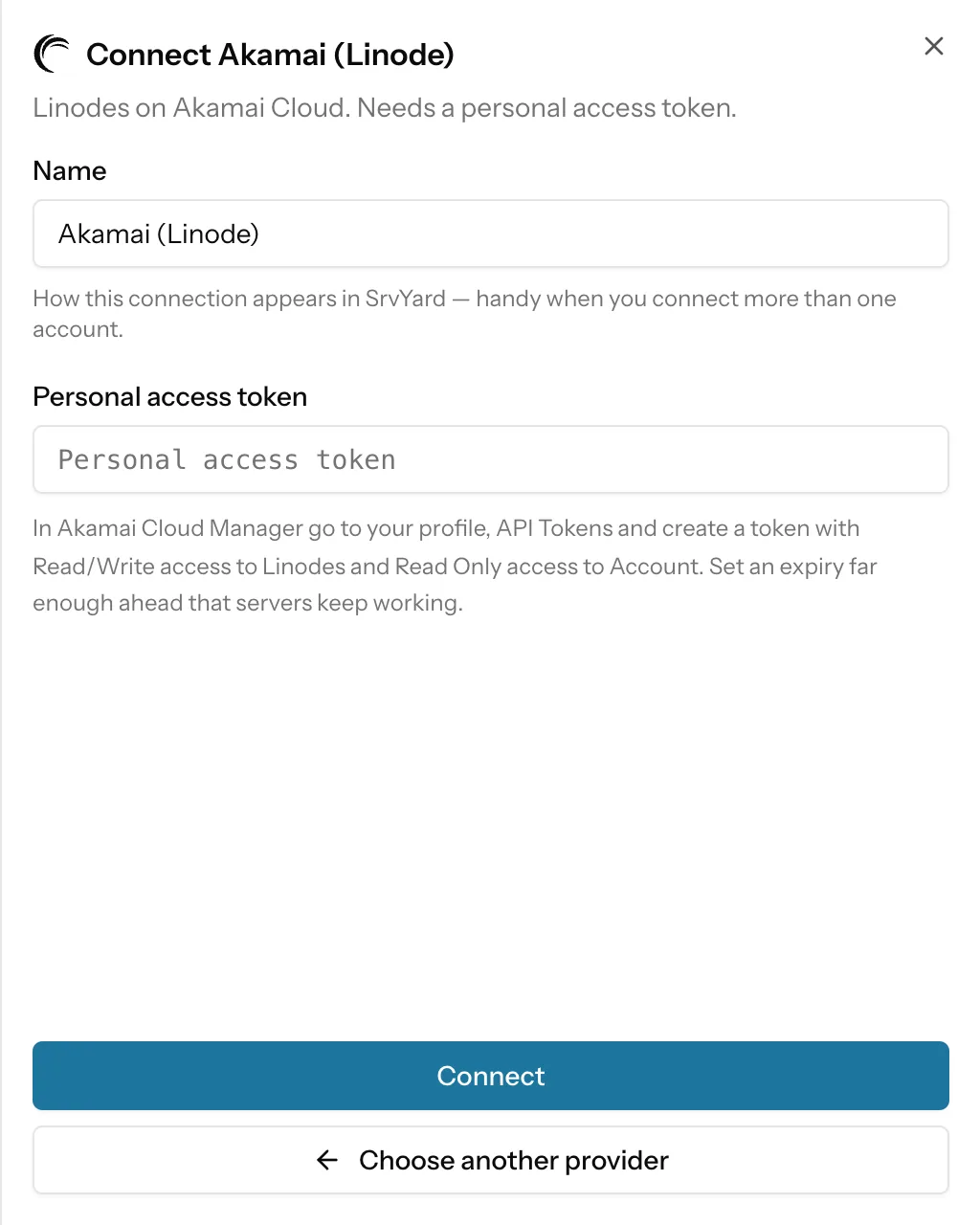
SrvYard asks for regions, plans and images, and for creating, rebooting, imaging and deleting the Linodes it made. It does not manage your Akamai billing, domains, NodeBalancers, volumes or Kubernetes clusters.
Each Linode is created with a long random root password that SrvYard never shows and never uses: it logs in with its own key. Linodes are tagged srvyard.
You can connect several accounts, each under its own name. A token that Akamai rejects shows as Needs reconnecting; existing Linodes keep running.
Already have a Linode? Use Connect an existing server: one command as root, no token.
03Create a server
the Add server formName and provider
A name up to 60 characters, which becomes the Linode label, and your connected Akamai account.
Server type
App server if you are unsure: sites, queue workers and a database on one machine.
Region and plan
Regions that support Linodes and are healthy. Plans are grouped as Shared CPU, Dedicated CPU and High memory, with the monthly price (the regional price where Akamai sets one). If the token may read Akamai’s availability list, plans sold out in the region are shown but cannot be selected.
Create
SrvYard creates the Linode, waits for it to run with an address, provisions it over SSH and shows Ready when it is done.
04What works on a Linode
read from the integration| Capability | Akamai (Linode) |
|---|---|
| Provider backups | An option in Advanced settings. The monthly charge depends on the plan and is shown on each size. |
| IPv6 and private networks | Not offered in the SrvYard form for this provider. |
| Restart | A reboot through Akamai’s API. There is no separate hard reset. |
| Snapshots | Taken at Akamai as an Image of the Linode’s main disk (Backups, Snapshots; a plan with backups: Pro or Business). Akamai limits the size of an image (6 GB when SrvYard was built; check Akamai’s current limit) and needs an ext4 or raw main disk; when either limit applies, the provider’s own error is shown. A server can be created from an image in another region. |
| Delete | Deleting the server in SrvYard deletes the Linode too, unless you switch Preserve on. Archiving never touches the Linode. |
| Open in | The Actions menu links to the Linode in Cloud Manager. |
05Limits
so you can rule it out early- No NodeBalancers, managed databases, LKE or object storage are created. For backups to object storage, add a storage provider separately.
- No Docker or Docker Compose, even on a Linode with a Docker image.
- Only Ubuntu 24.04 and 26.04 are created.
A snapshot of a Linode with a main disk above Akamai’s image size limit fails at Akamai, not in SrvYard. Use file and database backups for those servers.
See Provider snapshots for cost and restore details.
06Provider questions
answers from the docsWhich scopes does the Akamai (Linode) token need?
Read/Write access to Linodes and Read Only access to Account. Choose an expiry far enough ahead that servers keep working. See Add a server provider and its API token.
Why did my Linode snapshot fail?
SrvYard saves the main disk as an Akamai image. Akamai limits the size of an image (6 GB when SrvYard was built) and needs an ext4 or raw main disk, and the provider's own error is shown when either applies. Use file and database backups for larger servers. See Provider snapshots.
Connect an Akamai account and create the first server.
Free: 1 server, 3 sites, 100 deploys a month. Read the docs first if you prefer.